> For the complete documentation index, see [llms.txt](https://docs.webstudio.is/llms.txt). Markdown versions of documentation pages are available by appending `.md` to page URLs; this page is available as [Markdown](https://docs.webstudio.is/university/foundations/style-panel.md).
# Style panel
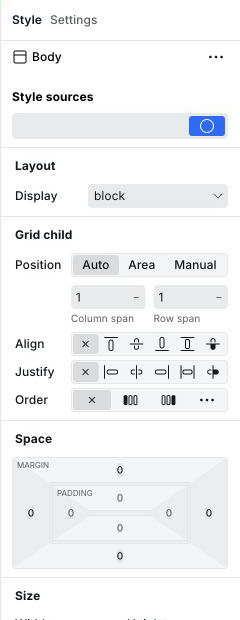
Use the Style Panel to apply CSS styles to any instance on your page.
The Style Panel is on the right side of the builder. It exposes every CSS property visually and applies styles to the currently selected instance. All style changes are scoped by the active [breakpoint](/university/foundations/breakpoints.md) and style source.
## Style sources
At the top of the Style Panel is the **style source bar**, which determines where styles are saved and how reusable they are. There are two types of style sources:
* **Local** — styles apply only to this instance. See [Design tokens](/university/foundations/design-tokens.md) for the full explanation of Local vs. Tokens.
* **Tokens** — reusable style groups shared across multiple instances. See [Design tokens](/university/foundations/design-tokens.md).
[CSS variables](/university/foundations/css-variables.md) are not a style source — they are named values (e.g. `--color-brand`) defined on any instance in the Advanced section and referenced inside style inputs across the site.
Style label colors indicate where each value comes from. See [Label colors](/university/foundations/anatomy-of-the-webstudio-builder.md#label-colors) for the full reference.
## Sections
The Style Panel is organized into collapsible sections. A dot on the section title indicates at least one property in that section has a value set.
### Layout
Controls how the selected instance arranges its children.
* **Display** — sets the layout mode: `block`, `flex`, `grid`, `inline`, `inline-block`, `inline-flex`, `inline-grid`, `none`, etc.
* **Direction** (`flex-direction`) — row or column, and their reversed variants
* **Wrap** (`flex-wrap`) — whether flex children wrap to the next line
* **Align items** — cross-axis alignment of children
* **Justify items** — inline-axis alignment of children (grid)
* **Justify content** — distribution of children along the main axis
* **Align content** — distribution of wrapped lines
* **Gap** (`row-gap`, `column-gap`) — space between children
* **Grid auto flow** — automatic placement direction for grid items
* **Grid auto columns / rows** — size of implicitly created grid tracks
* **Grid template columns / rows** — explicit grid track definitions
### Flex child
Visible when the selected instance is inside a flex container. A link in the section header lets you quickly jump to the parent flex container.
* **Align self** — overrides the parent's `align-items` for this instance only
* **Flex grow** — proportion of available space this instance should take up
* **Flex shrink** — how much this instance shrinks relative to others when space is tight
* **Flex basis** — the default size before growing or shrinking
* **Order** — visual order within the flex container (does not affect DOM order)
### Grid child
Visible when the selected instance is inside a grid container.
* **Column start / end** (`grid-column-start`, `grid-column-end`) — which grid column lines to span
* **Row start / end** (`grid-row-start`, `grid-row-end`) — which grid row lines to span
* **Align self** — vertical alignment within its grid cell
* **Justify self** — horizontal alignment within its grid cell
* **Order** — visual order within the grid
### Size
Controls the dimensions and overflow of the instance.
* **Width / Height** — explicit size (supports px, %, rem, vh, vw, auto, etc.)
* **Min width / Min height** — minimum size the instance can shrink to
* **Max width / Max height** — maximum size the instance can grow to
* **Overflow X / Y** — `visible`, `hidden`, `scroll`, `auto` — controls what happens when content is larger than the box
* **Object fit** — how an image or video fills its box (`cover`, `contain`, `fill`, `none`)
* **Object position** — alignment of the media within its box
* **Aspect ratio** — maintains a fixed width-to-height ratio
### Space
Controls padding (inside the border) and margin (outside the border). Each property supports setting all four sides at once or individually.
* **Padding** — space between the content and the border
* **Margin** — space outside the border, pushing other instances away
### Position
Controls how the instance is positioned in the document flow.
* **Position** — `static` (default), `relative`, `absolute`, `fixed`, `sticky`
* **Top / Right / Bottom / Left** — offset from the reference point (only applies to non-static positions)
* **Z-index** — stacking order (also available for flex and grid children)
### Typography
Controls text appearance.
* **Font family** — the typeface; uploaded fonts from Assets are available here
* **Font weight** — thin, regular, medium, bold, etc.
* **Font size** — supports all CSS units
* **Line height** — spacing between lines
* **Color** — text color with color picker and CSS variable support
* **Text align** — left, center, right, justify, start, end
* **Font style** — normal or italic
* **Text decoration** — underline, overline, line-through, or none
* **Letter spacing** — space between individual characters
* **Text transform** — uppercase, lowercase, capitalize, none
* **White space collapse** — controls how whitespace and line breaks are handled
* **Text wrap mode** — `wrap` or `nowrap`
* **Text wrap style** — `auto`, `balance`, `pretty`, or `stable` (controls how text wraps across lines)
* **Hyphens** — `none`, `manual`, or `auto` (whether words are hyphenated at line breaks)
* **Direction** — left-to-right or right-to-left (for RTL languages)
* **Text overflow** — `clip` or `ellipsis` (requires `white-space: nowrap` and `overflow: hidden`)
### Backgrounds
Supports multiple background layers. Each layer can be a color, image, or gradient.
* **Background color** — solid color applied behind all background layers
* **Background image** — image from Assets or an external URL
* **Gradient** — linear or radial, with full stop editor
* **Background size** — `auto`, `cover`, `contain`, or exact dimensions
* **Background position** — X and Y offset
* **Background repeat** — `repeat`, `no-repeat`, `repeat-x`, `repeat-y`, `space`, `round`
* **Background attachment** — `scroll`, `fixed`, `local`
* **Background clip** — `border-box`, `padding-box`, `content-box`, `text`
* **Background origin** — reference box for `background-position`
* **Background blend mode** — how this layer blends with layers below it
### Borders
* **Border style** — `solid`, `dashed`, `dotted`, `double`, `none`, etc. (per side or all at once)
* **Border color** — per side or all at once
* **Border width** — per side or all at once
* **Border radius** — rounds corners; set all four corners individually or together
### Outline
The outline is drawn outside the border and does not affect layout (no space is reserved for it).
* **Outline style** — `solid`, `dashed`, `dotted`, `none`, etc.
* **Outline color**
* **Outline width**
* **Outline offset** — distance between the border and the outline
### Box shadows
Add one or more `box-shadow` layers. Each layer has:
* **X / Y offset** — horizontal and vertical position
* **Blur** — softness of the shadow edge
* **Spread** — expansion or contraction of the shadow shape
* **Color**
* **Inset** — switches from an outer to an inner shadow
### Text shadows
Add one or more `text-shadow` layers. Each layer has:
* **X / Y offset**
* **Blur**
* **Color**
### Filter
CSS `filter` effects applied to the element and its content:
* Blur, Brightness, Contrast, Grayscale, Hue-rotate, Invert, Opacity, Saturate, Sepia, Drop shadow
Multiple filters can be stacked. Order matters — they are applied left to right.
### Backdrop filter
Same filter functions as Filter, but applied to the content **behind** the element (requires a non-opaque background). Commonly used for frosted-glass effects.
### Transitions
Animate style property changes smoothly. Multiple transition layers can be defined, one per animated property.
* **Property** (`transition-property`) — which CSS property to animate (e.g. `opacity`, `transform`, `all`)
* **Duration** (`transition-duration`) — how long the animation takes
* **Timing function** (`transition-timing-function`) — easing curve: `ease`, `linear`, `ease-in`, `ease-out`, `ease-in-out`, or a custom cubic-bezier
* **Delay** (`transition-delay`) — how long to wait before starting
* **Behavior** (`transition-behavior`) — controls whether discrete properties (like `display`) can be transitioned
### Transforms
Move, rotate, scale, or skew the instance without affecting layout.
* **Translate** — move along X, Y, or Z axis
* **Scale** — resize along X, Y, or Z axis
* **Transform** — raw `transform` value for rotate, skew, matrix, and combined transforms
* **Transform origin** — the point around which rotation and scaling happen
* **Backface visibility** — whether the back face is visible when rotated past 90°
* **Perspective** — depth of the 3D perspective projection
* **Perspective origin** — the vanishing point for the perspective
### Advanced
A free-form CSS property editor for anything not covered by the sections above. Type any valid CSS property name — autocomplete shows the full list — and enter its value.
Autocomplete includes standard, experimental, nonstandard, and obsolete CSS properties. A yellow warning marks any property that is not standard. Open the warning to review its status and browser-support risk, then select **Learn more on MDN** for compatibility details. Test these properties in the browsers your site supports before relying on them.
**Common uses:**
* Properties not exposed elsewhere: `cursor`, `pointer-events`, `will-change`, `content`, `list-style`, `appearance`, `resize`, `clip-path`, etc.
* Defining [CSS variables](/university/foundations/css-variables.md): add a property like `--my-color` with a value, and it becomes available to all child instances
* Setting properties you know by name without searching the panel
## Related
* [Design tokens](/university/foundations/design-tokens.md) – Local styles, tokens, and how they work together
* [CSS variables](/university/foundations/css-variables.md) – Named values used inside style inputs
* [Label colors](/university/foundations/anatomy-of-the-webstudio-builder.md#label-colors) – What the blue, orange, and gray labels mean
* [States and selectors](/university/foundations/states-and-selectors.md) – Style hover, focus, and other states
* [Breakpoints](/university/foundations/breakpoints.md) – Style at different screen sizes
* [Transforms](/university/foundations/transforms.md) – Translate, rotate, and scale instances
---
# Agent Instructions
This documentation is published with GitBook. GitBook is the documentation platform designed so that both humans and AI agents can read, navigate, and reason over technical content effectively. Learn more at gitbook.com.
## Querying This Documentation
If you need additional information that is not directly available in this page, you can query the documentation by asking a question.
Perform an HTTP GET request on the following URL with the `ask` and `goal` query parameters:
```
GET https://docs.webstudio.is/university/foundations/style-panel.md?ask=&goal=
```
`ask` is the immediate question: it should be specific, self-contained, and written in natural language.
`goal` is what the user is ultimately trying to achieve, the reason they need the answer. Sharing it helps GitBook give you a better, more relevant answer. A goal is most helpful when it describes the outcome the user wants rather than restating the question. For example, with `ask=how do I create an API token`, a goal like `automate deployments from our CI pipeline` lets GitBook tailor the answer to that use case.
The response will contain a direct answer to the question and relevant excerpts and sources from the documentation.
Use this mechanism when the answer is not explicitly present in the current page, you need clarification or additional context, or you want to retrieve related documentation sections.