> For the complete documentation index, see [llms.txt](https://docs.webstudio.is/llms.txt). Markdown versions of documentation pages are available by appending `.md` to page URLs; this page is available as [Markdown](https://docs.webstudio.is/university/foundations/transforms.md).
# Transforms
CSS Transforms enable you to rotate, scale, skew, and translate elements to create dynamic visual effects.
CSS Transforms allow you to visually manipulate elements by rotating, scaling, skewing, or moving them. They're powerful for creating interactive effects like hover animations and dynamic layouts.
## Accessing Transforms
1. Select an instance in the canvas
2. Open the **Style Panel** on the right
3. Scroll to the **Transforms** section (or search for "transform")
4. Click the **+** button to add a transform
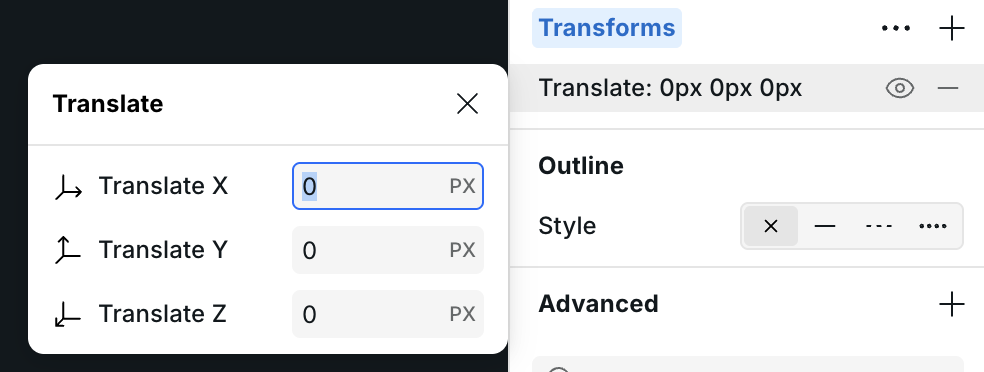
The Transforms section in the Style Panel
## Transform Properties
### Translate
Move an element horizontally (X) or vertically (Y) without affecting the document flow:
* **translateX**: Move left (negative) or right (positive)
* **translateY**: Move up (negative) or down (positive)
* **translateZ**: Move forward/backward (for 3D effects)
### Rotate
Spin an element around its center point:
* **rotate**: 2D rotation (e.g., `45deg` rotates 45 degrees clockwise)
* **rotateX/Y/Z**: 3D rotation around specific axes
### Scale
Resize an element:
* **scaleX**: Stretch horizontally
* **scaleY**: Stretch vertically
* **scale**: Uniform scaling (1 = original, 2 = double, 0.5 = half)
### Skew
Tilt an element:
* **skewX**: Slant horizontally
* **skewY**: Slant vertically
### Transform Origin
Set the point around which transforms occur (default is center):
* **transform-origin**: e.g., `top left`, `center`, `50% 50%`
## Combining Multiple Transforms
You can stack multiple transforms on a single element. Each transform is applied in order, which affects the final result.
## Common Use Cases
### Card Hover Effect
Create an interactive card that lifts on hover:
1. Add a Box element and style it as a card
2. Add a subtle `box-shadow`
3. Select the **Hover** state from the States dropdown
4. Add transforms:
* `translateY: -8px` (lift the card)
* `rotate: 2deg` (slight tilt)
5. Switch back to the default state
6. Add a `transition` property: `transform 0.3s ease`
### Button Scale Effect
Make buttons feel tactile:
1. Select your button
2. In the Hover state, add `scale: 1.05`
3. Add `transition: transform 0.2s ease` on the default state
### Rotating Icons
Create spinning icons for loading states:
1. Select an icon
2. Add `rotate: 360deg` in an animation or hover state
## Transforms with Transitions
Transforms are most effective when combined with [CSS Transitions](/university/foundations/animations.md#css-transitions) for smooth animations:
1. Apply the **transform** on the target state (hover, focus, etc.)
2. Apply the **transition** on the default state
3. The transition property should include `transform` (e.g., `transition: transform 0.3s ease`)
{% hint style="info" %}
**Tip:** For hover effects, always add the transition on the default state, not the hover state. This ensures smooth animation both on hover and when the cursor leaves.
{% endhint %}
## Z-Index with Transforms
When lifting elements with translateY on hover, you may want them to appear above siblings:
1. Set `position: relative` on the element
2. On hover, increase `z-index` (e.g., `z-index: 10`)
## Performance Considerations
Transforms are GPU-accelerated, making them ideal for animations:
* Prefer `transform: translate()` over `top/left` for movement
* Prefer `transform: scale()` over `width/height` for resizing
* These properties don't trigger layout recalculation, resulting in smoother 60fps animations
## Related
* [Animations](/university/foundations/animations.md) – Create scroll-driven and interactive animations
* [CSS variables](/university/foundations/css-variables.md) – Define reusable style values
* [Animation Group](/university/core-components/animation-group.md) – Container for scroll-driven animations
* [Anatomy of the Webstudio builder](/university/foundations/anatomy-of-the-webstudio-builder.md) – Learn about the Style Panel
---
# Agent Instructions
This documentation is published with GitBook. GitBook is the documentation platform designed so that both humans and AI agents can read, navigate, and reason over technical content effectively. Learn more at gitbook.com.
## Querying This Documentation
If you need additional information that is not directly available in this page, you can query the documentation dynamically by asking a question.
Perform an HTTP GET request on the current page URL with the `ask` query parameter, and the optional `goal` query parameter:
```
GET https://docs.webstudio.is/university/foundations/transforms.md?ask=&goal=
```
`ask` is the immediate question: it should be specific, self-contained, and written in natural language.
`goal` is optional and describes the broader end goal you are ultimately trying to accomplish on behalf of the user. GitBook uses it to tailor the answer towards what is most useful for that goal.
The response will contain a direct answer to the question and relevant excerpts and sources from the documentation.
Use this mechanism when the answer is not explicitly present in the current page, you need clarification or additional context, or you want to retrieve related documentation sections.