githubEdit

📐Layout & Grid

Learn how to create two-dimensional layouts using CSS Grid in Webstudio — define columns, rows, named areas, and position child elements visually.

See MDN: CSS Grid Layoutarrow-up-right

CSS Grid is a two-dimensional layout system that lets you control both columns and rows simultaneously. While Flexbox excels at one-directional flows, Grid is ideal for complex page structures like dashboards, magazine layouts, and holy grail patterns.


When to Use Grid vs Flexbox

Use case
Recommended

Horizontal or vertical list of items

Flexbox

Card grid that wraps responsively

Either (Flexbox with wrap or Grid with auto-fit)

Page-level structure (header, sidebar, main, footer)

Grid

Precise cell placement and overlapping

Grid

Named layout regions

Grid


Enabling Grid

  1. Select the parent container

  2. Go to Style PanelLayout section

  3. Change Display to Grid


Grid Generator

Click the grid preview button at the top of the Layout section to open the Grid Generator. It provides three ways to create a grid:

Size selector

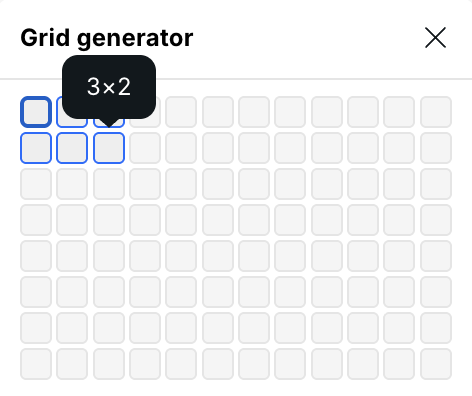
Hover over the interactive cell grid (up to 12 columns × 8 rows) and click to set the number of columns and rows. All tracks are set to 1fr.

Grid Generator with size selector
Grid Generator size selector

Presets

Six built-in layout presets with visual thumbnails:

Preset
Description

Fluid sidebar

Sidebar that shrinks to fit its content alongside a flexible main area

Page stack

Single-column layout with auto-sized header, flexible body, and auto-sized footer

Holy grail

Classic header/sidebar/main/aside/footer layout using named areas

Responsive cards

Auto-wrapping cards that maintain a minimum size

Feature section

Auto-wrapping feature blocks with wider minimum size

Footer columns

Auto-wrapping narrow columns for footer links

Grid preset thumbnails
Built-in grid presets

Fill grid

Click Fill grid to automatically insert child div elements into every empty grid cell — useful for quickly populating a layout.


Grid Settings

Click Configure grid to open the detailed track editor. It contains four collapsible sections:

Grid Settings panel with column and row tracks
Grid Settings — column and row track editors

Columns

Define explicit column tracks. Each track shows its value (e.g., 1fr, 200px, minmax(250px, 1fr)).

  • Click a track to edit its value in a floating panel

  • Enable Use min/max to set a minmax() value with separate Min and Max inputs

  • Drag tracks to reorder

  • Use + to add a track and to remove

  • Hover over a track to highlight it on the canvas

Rows

Same controls as Columns, applied to row tracks.

Auto columns / Auto rows

Configure implicit track sizes for content placed outside the explicit grid (via grid-auto-columns and grid-auto-rows). These tracks cannot be reordered or added/removed — they define the size of any automatically created tracks.

Areas

Manage named grid areas (sets grid-template-areas on the container):

  • Click + to add a new named area — it automatically finds a non-overlapping position

  • Click an area to edit its name and position (column start/end, row start/end)

  • Use the visual area picker to click and drag across grid cells to define the area's span

  • Occupied areas appear in red; the selected area appears in blue

  • Hover over an area to highlight it on the canvas

Named grid areas list
Named grid areas
Visual area picker with selected and occupied areas
Visual area picker — blue is the selected area, red indicates occupied cells
circle-info

Named areas make it easy to position children by name instead of line numbers. Use the Holy grail preset to see named areas in action.


Alignment

The Layout section provides alignment controls for distributing items within the grid:

Visual alignment widget

A 3×3 clickable grid that sets Align items and Justify items simultaneously — click a cell to align all children to that position.

Alignment properties

Property
Axis
Controls

Justify items

Inline (horizontal)

Start, Center, End, Stretch

Align items

Block (vertical)

Start, Center, End, Stretch, Baseline

Justify content

Inline (horizontal)

Start, Center, End, Space Between, Space Around

Align content

Block (vertical)

Start, Center, End, Space Between, Space Around

Grid auto flow

Row, Column, Row Dense, Column Dense


Gap

Two inputs control spacing between grid tracks:

  • Column gap — horizontal spacing between columns

  • Row gap — vertical spacing between rows

Click the link icon between them to keep both values in sync.


Grid Child

When you select an element whose parent is a grid container, the Grid child section appears in the Style Panel. It controls how the child is positioned within the grid.

Grid Child section with position modes
Grid Child section

Position modes

A toggle at the top switches between three modes:

Auto

The child flows into the next available cell. Set Column span and Row span to make it occupy multiple tracks.

Area

Select a named area from the dropdown to place the child into that region. All four placement properties are set to the area name automatically.

Grid Child in Area mode with area dropdown
Grid Child — Area mode with named area dropdown
circle-exclamation

Manual

Set exact grid line numbers for Column start, Column end, Row start, and Row end. A visual area picker below the inputs lets you click grid cells to set the position interactively.

Alignment

  • Align self — Override the parent's align-items for this child (Auto, Start, Center, End, Stretch, Baseline)

  • Justify self — Override the parent's justify-items for this child (Auto, Start, Center, End, Stretch, Baseline)

  • Order — Change the visual rendering order without changing the DOM

Select parent grid

Click the button in the section header to navigate to the parent grid container — useful for switching between child and container settings.


Canvas Grid Guides

When working with Grid, Webstudio displays an overlay on the canvas showing:

  • Grid track lines and borders

  • Track size labels

  • Named area labels in the top-left cell of each area

  • Highlighted tracks when hovering over items in Grid Settings

Canvas with grid guide overlay
Canvas grid guides showing track lines, sizes, and area names

Common Patterns

Responsive card grid

  1. Set display to Grid

  2. Open the Grid Generator and select the Responsive cards preset

  3. Add card children — they auto-wrap and maintain a minimum width

Page layout with named areas

  1. Set display to Grid

  2. Select the Holy grail preset (creates header, sidebar, main, aside, footer areas)

  3. Add children and set each to Area mode, selecting the matching area name

  4. At smaller breakpoints, redefine the areas or switch to a single-column stack

  1. Set display to Grid

  2. Select the Fluid sidebar preset

  3. The sidebar column uses fit-content(300px) — it shrinks to its content but won't exceed 300px


Last updated

Was this helpful?