> For the complete documentation index, see [llms.txt](https://docs.webstudio.is/llms.txt). Markdown versions of documentation pages are available by appending `.md` to page URLs; this page is available as [Markdown](https://docs.webstudio.is/university/foundations/navigator.md).
# Navigator
Use the Navigator to view, select, and organize instances on your page.
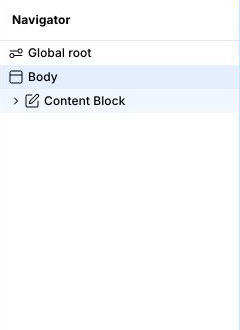
The Navigator is a hierarchical panel on the left side of the builder that shows every instance on the current page as a tree. It reflects the exact nesting structure of your page and is the primary way to select, reorder, and organize instances — especially when they are stacked or overlapping on the canvas.
## Selecting instances
Click any item in the Navigator to select it. The selected instance is also highlighted on the canvas. Selecting from the Navigator is especially useful for:
* Instances that are invisible or have zero size on the canvas
* Instances hidden behind other instances
* Instances inside a collapsed container
### Select multiple instances
You can select multiple sibling instances and edit their shared settings in one operation:
* Hold `Command` on macOS or `Ctrl` on Windows and click to add or remove an instance from the selection.
* Hold `Shift` and click to select a range.
* Press `Shift + Up Arrow` or `Shift + Down Arrow` to extend the selection.
* Press `Command + A` on macOS or `Ctrl + A` on Windows to select all siblings of the current instance.
Copy, cut, duplicate, delete, and compatible style or settings changes apply to the selection. Webstudio skips instances that cannot accept an operation and keeps the remaining selection intact.
### Link to a selected instance
Right-click an instance and choose **Copy link to instance** to copy its full Builder URL to the clipboard. Share the link to open the same page and select the same instance, including its location inside a shared Slot. Select one instance at a time; this action is unavailable for Global Root.
The recipient needs access to the project. If you opened the Builder through a share link, the copied URL keeps that share link’s access token.
You can also copy the browser URL, which tracks the selected page and instance. Webstudio also uses these links for actions such as **Show element** in pre-publish findings. If the instance was removed before the link is opened, the Builder still opens the requested page.
You can give this link to an AI assistant connected to the project through [MCP](/university/mcp.md) to identify the instance you want to change.
## Renaming instances
Double-click any item in the Navigator to rename it. Use descriptive names like "Hero Section" or "Product Card" to make large projects easier to navigate.
## Reordering and nesting
Drag items in the Navigator to reorder or re-nest them. This is the most reliable way to restructure deeply nested layouts.
You can also move the selected instance or sibling selection with the keyboard:
* `Ctrl + Up Arrow` or `Ctrl + Down Arrow` moves it before or after a sibling.
* `Ctrl + Left Arrow` moves it out of its parent.
* `Ctrl + Right Arrow` moves it into the previous sibling.
## Show / hide
Right-click any item in the Navigator to toggle its visibility on the canvas. Hidden instances are still rendered in the published site unless you use a [display condition](/university/foundations/expression-editor.md#binding) or set `display: none` in the Style Panel.
## Global Root
At the top of the Navigator is the **Global Root** — the highest level in the instance tree. Styles set here apply to every page in the project. See [Anatomy of the builder](/university/foundations/anatomy-of-the-webstudio-builder.md#global-root) for a full explanation.
## CSS preview
Below the instance tree, the Navigator shows a **CSS Preview** — a read-only view of the computed CSS styles applied to the currently selected instance. It is useful for quickly checking what styles are active without opening the Style Panel.
## Related
* [Anatomy of the builder](/university/foundations/anatomy-of-the-webstudio-builder.md) – Overview of all builder panels
* [Style panel](/university/foundations/style-panel.md) – Apply styles to selected instances
* [CSS variables](/university/foundations/css-variables.md) – Define global variables on the root
* [Expression editor](/university/foundations/expression-editor.md) – Conditionally show or hide instances
---
# Agent Instructions
This documentation is published with GitBook. GitBook is the documentation platform designed so that both humans and AI agents can read, navigate, and reason over technical content effectively. Learn more at gitbook.com.
## Querying This Documentation
If you need additional information that is not directly available in this page, you can query the documentation dynamically by asking a question.
Perform an HTTP GET request on the current page URL with the `ask` query parameter, and the optional `goal` query parameter:
```
GET https://docs.webstudio.is/university/foundations/navigator.md?ask=&goal=
```
`ask` is the immediate question: it should be specific, self-contained, and written in natural language.
`goal` is optional and describes the broader end goal you are ultimately trying to accomplish on behalf of the user. GitBook uses it to tailor the answer towards what is most useful for that goal.
The response will contain a direct answer to the question and relevant excerpts and sources from the documentation.
Use this mechanism when the answer is not explicitly present in the current page, you need clarification or additional context, or you want to retrieve related documentation sections.