> For the complete documentation index, see [llms.txt](https://docs.webstudio.is/llms.txt). Markdown versions of documentation pages are available by appending `.md` to page URLs; this page is available as [Markdown](https://docs.webstudio.is/university/foundations/copy-paste/css.md).

# CSS

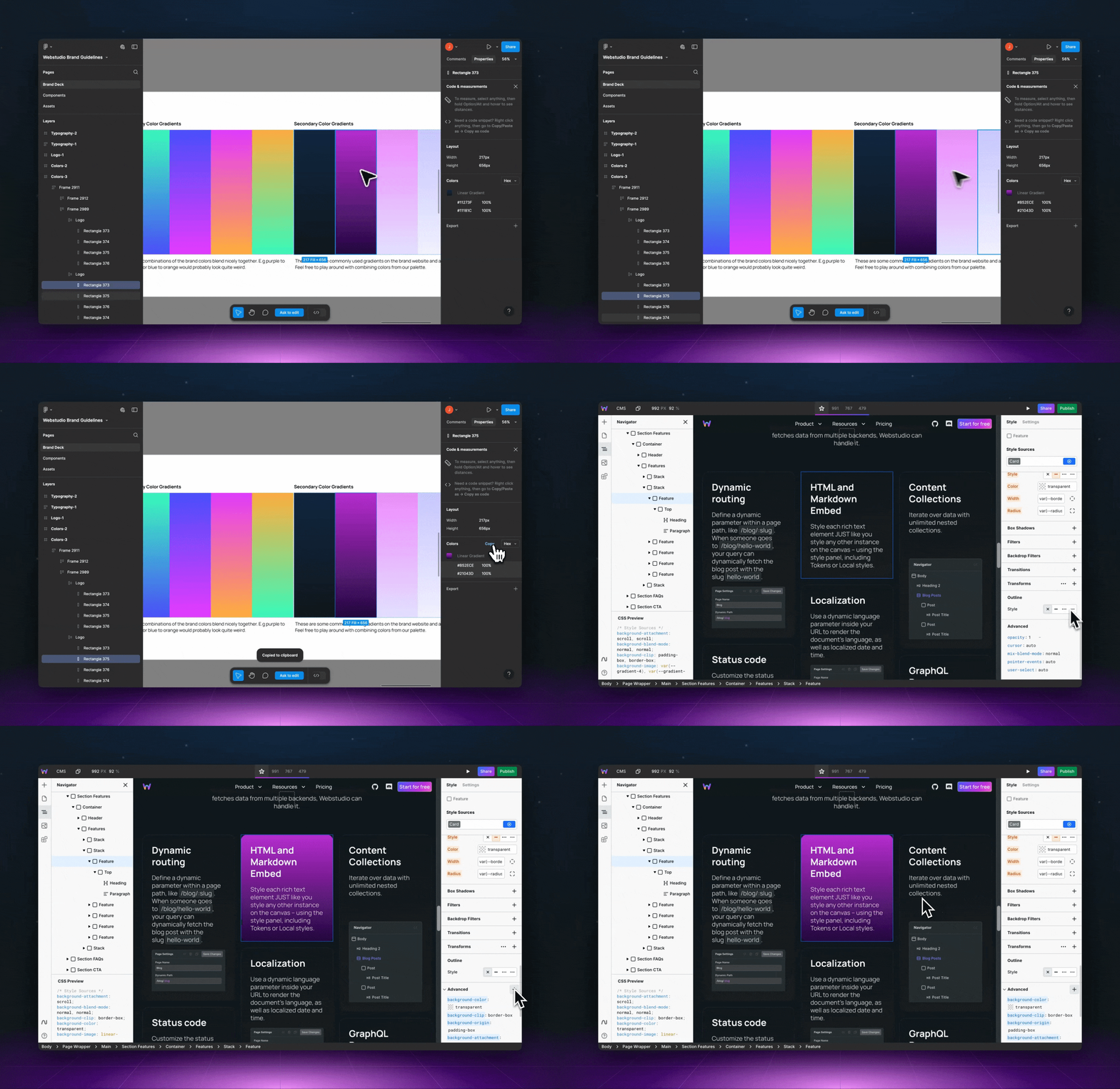
Paste CSS into Webstudio, and it'll be translated to the various fields in the Style Panel.

[CSS](https://developer.mozilla.org/en-US/docs/Web/CSS) is the design language of the internet. With this feature, you can copy CSS from anywhere and paste it into Webstudio, which will parse it and populate the various fields in the Style Panel.

## How to paste CSS

<figure><img src="https://330243581-files.gitbook.io/~/files/v0/b/gitbook-x-prod.appspot.com/o/spaces%2FTep4EGj6hSC54ozHujyK%2Fuploads%2Fgit-blob-c72eda4521be3f39de23a978c4f55bb8d2b1d472%2Fcss-paste.gif?alt=media" alt="pasting css from Figma into Webstudio"><figcaption></figcaption></figure>

1. Copy CSS declaration(s) such as `background: blue;`.
2. In Webstudio, go to the Style Panel > Advanced > and click "+".
3. Paste the CSS and press enter.

That's it.

The styles are parsed and displayed in their respective fields (they will also be shown in the Advanced section).

## Use cases

1. **Design tools like** [**Figma**](https://figma.com/) **and** [**Penpot**](https://penpot.app/) provide CSS, making copying and pasting individual layer styles into Webstudio easier.
2. **Third-party libraries like** [**Open Props**](https://open-props.style/) provide expertly crafted CSS variables, allowing you to import them via paste.
3. **Custom stylesheets** containing Design Systems and other declarations can be imported.
4. Inspect your website with [**DevTools**](https://developer.chrome.com/docs/devtools) and copy the CSS.
5. Online tutorials, [CodePen](https://codepen.io/), ChatGPT, and many other sources provide CSS.

## Pasting CSS declarations

When pasting into the Style Panel, Webstudio accepts CSS declarations (e.g., `background: blue;`). Selectors are not needed because Webstudio applies styles directly to the selected instance.

## Related

* [HTML with CSS](/university/foundations/copy-paste/html-with-css.md) – Paste HTML containing `<style>` blocks
* [HTML with Tailwind](/university/foundations/copy-paste/html-with-tailwind.md) – Paste HTML containing Tailwind utility classes
* [Markdown](/university/foundations/copy-paste/markdown.md) – Paste Markdown to create components automatically
* [Webflow](/university/foundations/copy-paste/webflow.md) – Copy Webflow components into Webstudio
* [Shortcuts](/university/foundations/shortcuts.md) – Keyboard shortcuts for faster workflows
* [Commands and search](/university/foundations/commands-and-search.md) – Quick access to commands and settings
* [Anatomy of the Webstudio builder](/university/foundations/anatomy-of-the-webstudio-builder.md) – Overview of the Webstudio interface


---

# Agent Instructions
This documentation is published with GitBook. GitBook is the documentation platform designed so that both humans and AI agents can read, navigate, and reason over technical content effectively. Learn more at gitbook.com.

## Querying This Documentation
If you need additional information that is not directly available in this page, you can query the documentation by asking a question.

Perform an HTTP GET request on the following URL with the `ask` and `goal` query parameters:

```
GET https://docs.webstudio.is/university/foundations/copy-paste/css.md?ask=<question>&goal=<user_goal>
```

`ask` is the immediate question: it should be specific, self-contained, and written in natural language.
`goal` is what the user is ultimately trying to achieve, the reason they need the answer. Sharing it helps GitBook give you a better, more relevant answer. A goal is most helpful when it describes the outcome the user wants rather than restating the question. For example, with `ask=how do I create an API token`, a goal like `automate deployments from our CI pipeline` lets GitBook tailor the answer to that use case.

The response will contain a direct answer to the question and relevant excerpts and sources from the documentation.

Use this mechanism when the answer is not explicitly present in the current page, you need clarification or additional context, or you want to retrieve related documentation sections.