# Assets
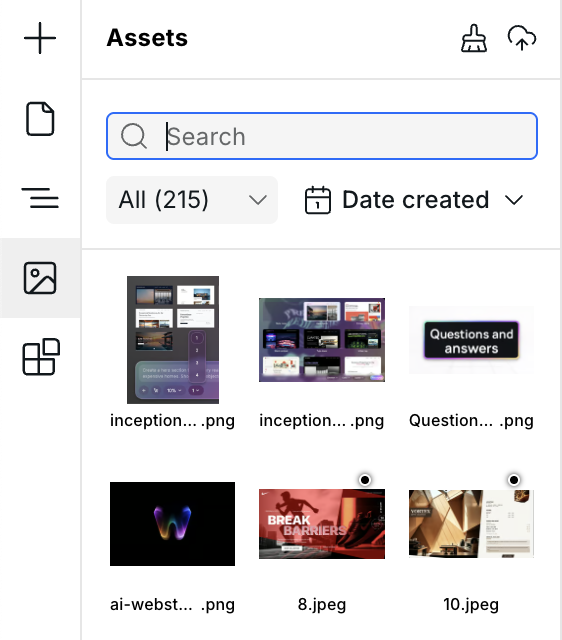
The Assets panel is located on the left side of the builder. It stores all static files used in your project — images, fonts, documents, and more. Upload files here and then reference them in instances and styles throughout your site.
The Assets panel
## Supported file types
| Category | Formats |
| --------------- | ----------------------------------------------- |
| **Images** | JPEG, PNG, GIF, WebP, SVG, AVIF, ICO, BMP, TIFF |
| **Fonts** | WOFF, WOFF2, TTF, OTF |
| **Video** | MP4, MOV, AVI, WebM |
| **Audio** | MP3, WAV, OGG, M4A |
| **Documents** | PDF, DOC, DOCX, XLS, XLSX, CSV, PPT, PPTX |
| **Code & text** | TXT, MD, JS, CSS, JSON, HTML, XML |
| **Archives** | ZIP, RAR |
{% hint style="info" %}
JPEG, PNG, GIF, WebP, SVG, and AVIF images are automatically optimized and resized by Cloudflare. Other image formats (ICO, BMP, TIFF) are served as-is without optimization.
{% endhint %}
## Uploading assets
Drag files directly into the Assets panel, drop them anywhere on the panel, or click the upload icon in the panel header. Multiple files can be uploaded at once. For images, you can also drag a URL directly from the browser to upload from an external source.
## Search
Type in the search field at the top of the Assets panel to filter assets by name.
## Filtering and sorting
Use the filter dropdown to show only a specific category: All, Images, Documents, Video, Audio, Code, Archives, or Fonts.
Sort assets by:
* **Alphabetical** — A→Z or Z→A
* **Date created** — newest or oldest first
* **File size** — largest or smallest first
## Asset details
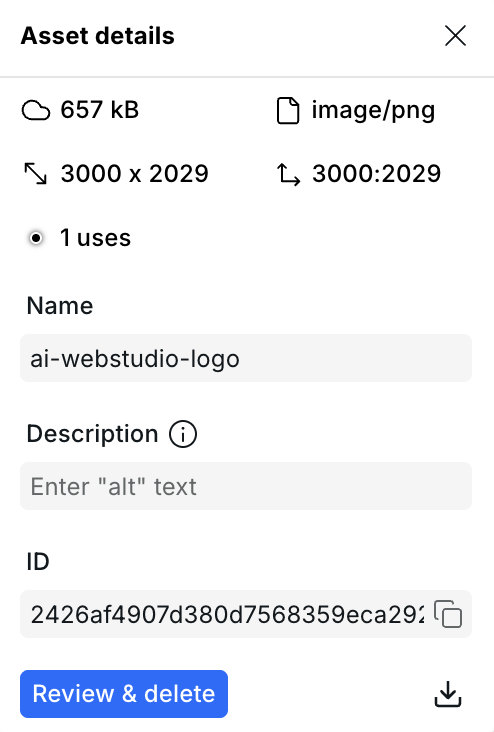
Hover any asset and click the gear icon to open its detail panel:
Asset detail panel
* **File size** and **MIME type**
* **Dimensions** and **Aspect ratio** (images only)
* **Uses** — how many places in the project reference this asset
* **Name** — editable; used as the filename in URLs
* **Description** — used as the default `alt` text for images
* **ID** — unique identifier, can be copied to clipboard
## Deleting assets
Delete and download buttons are available inside the asset detail panel (gear icon on hover):
* **Unused assets** can be deleted immediately.
* **Assets in use** show a "Review & delete" button that lists every usage with clickable links to each location, so you can review the impact before confirming.
* **Delete all unused assets** — click the brush icon in the Assets panel header to find and batch-delete all unreferenced assets in one action.
## Downloading assets
You can download any original asset file to your computer. Downloading is available on the Pro plan.
## Using assets
Once uploaded, assets are available in:
* **Image component** — select an asset as the image source
* **Background image** — pick an asset in the Style Panel under Backgrounds
* **Custom fonts** — uploaded font files are automatically available in the Typography section of the Style Panel
## Related
* [Anatomy of the builder](https://docs.webstudio.is/university/foundations/anatomy-of-the-webstudio-builder) – Overview of all builder panels
* [Image](https://docs.webstudio.is/university/core-components/image) – Display images from assets or external URLs
* [Commands & search](https://docs.webstudio.is/university/foundations/commands-and-search) – Quickly find and delete unused assets
* [How to use custom fonts](https://docs.webstudio.is/university/how-tos/how-to-use-custom-fonts) – Upload and apply font files